Product tour
See Cima work, one click at a time.
Real screens from the app, with made-up clients and demo insurance. Click the highlighted spot to go on, or use Next, the arrow keys or a swipe.
A practice day in Cima
Follow one made-up client from booking online to a paid claim, then see the practice's numbers. 11 steps.
-
Step 1 of 11
Clients book online
Your booking page shows your open hours. A new client picks a time on their phone, adds their details and insurance, and sends the request. No account, no app.
-
Step 2 of 11
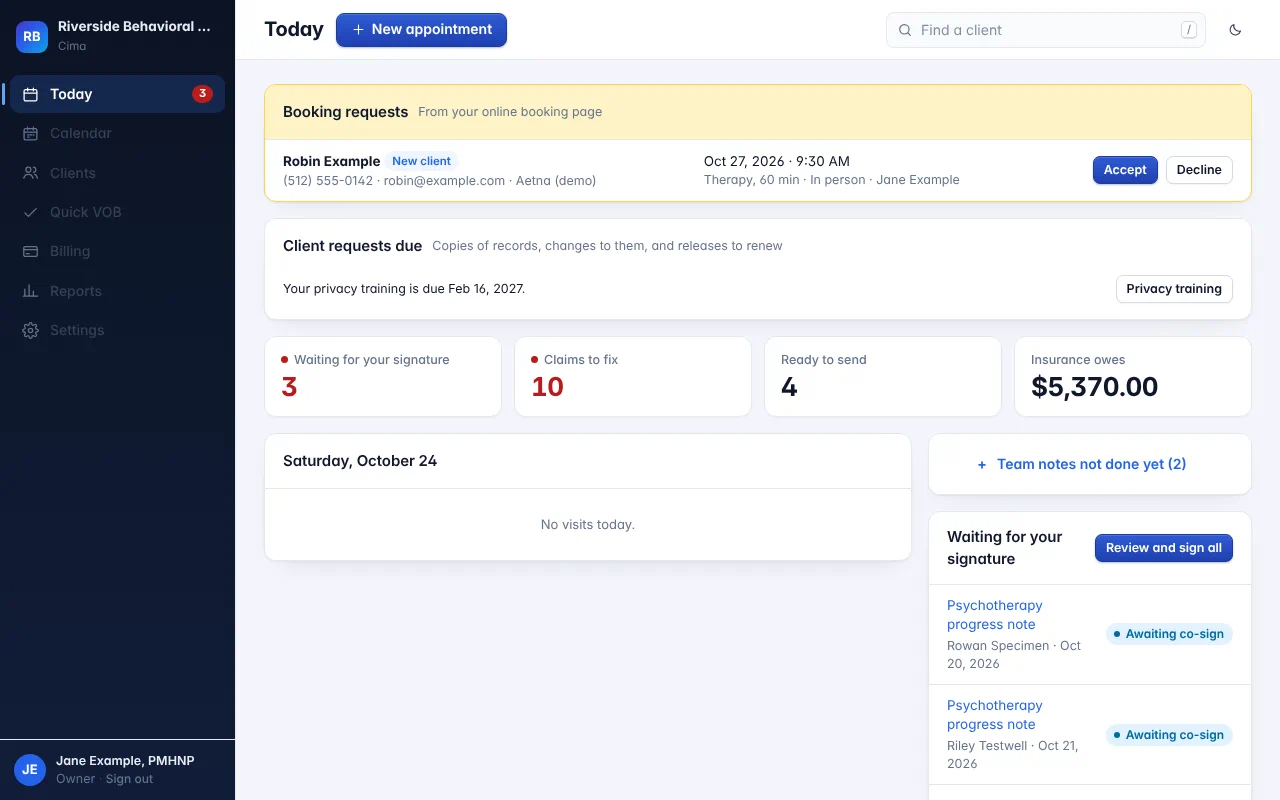
Accept the request
The request waits on Today. One click books the visit, confirms it by text and email, and sends a new client their paperwork.
Open the full-size screen -
Step 3 of 11
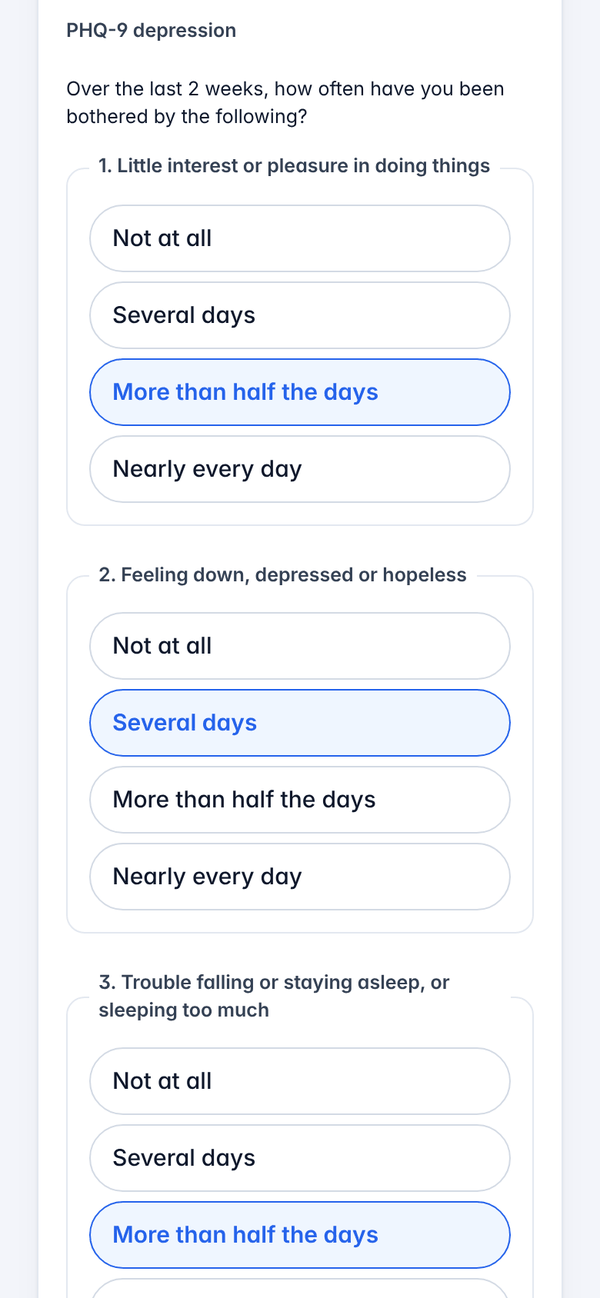
Paperwork before they walk in
Their link opens on the phone. They confirm their details, answer the PHQ-9 and GAD-7, and sign the consents with a finger.
-
Step 4 of 11
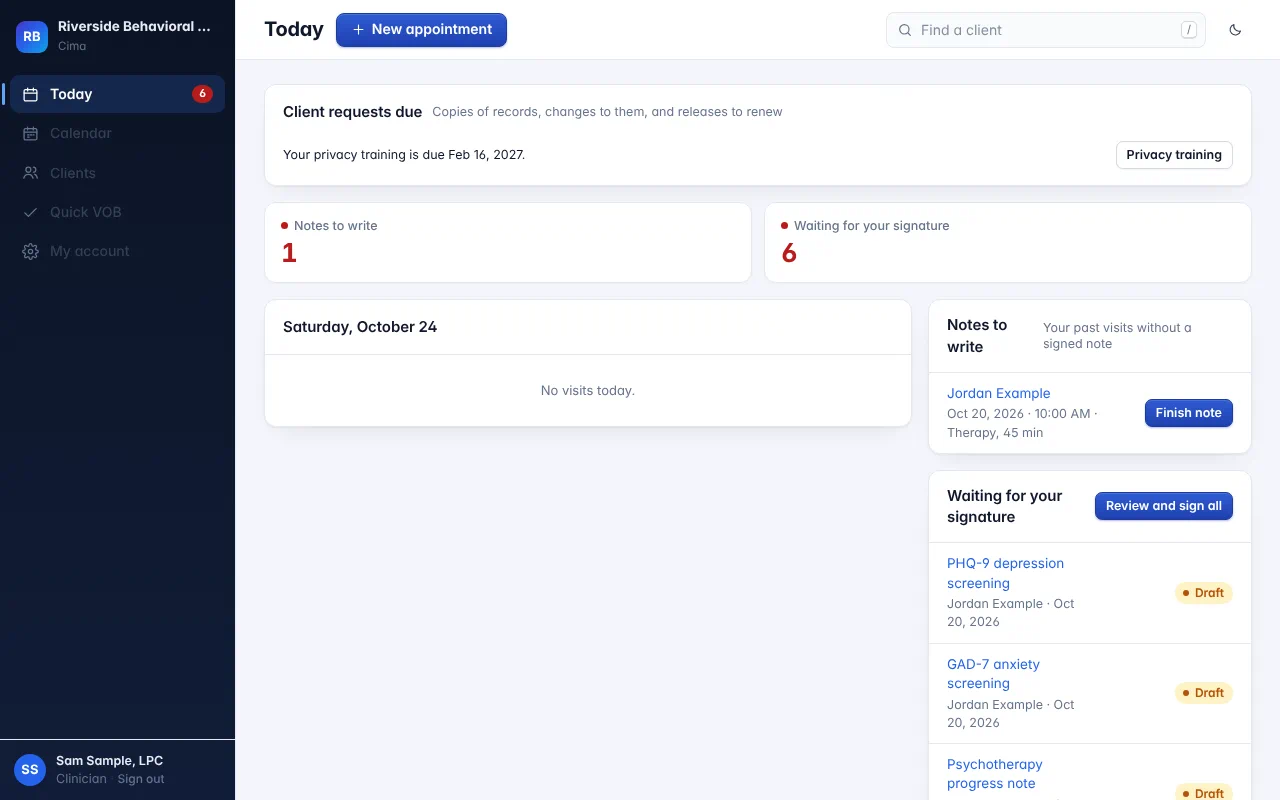
Notes to write
Today lists every past visit without a signed note, so nothing slips. Open one to start.
Open the full-size screen -
Step 5 of 11
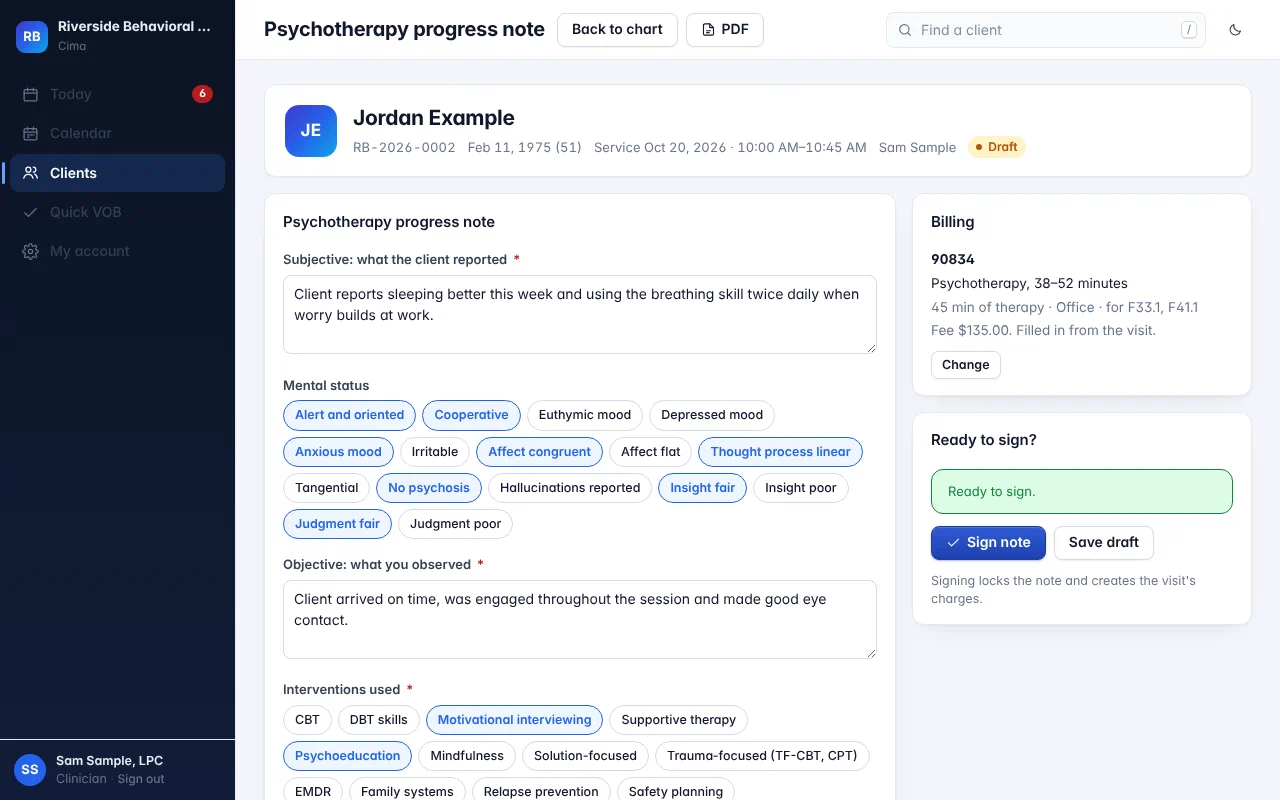
The note opens filled in
The visit's date, time and length are already there, and the billing code is picked from the session length. It tells you what's missing before you sign.
Open the full-size screen -
Step 6 of 11
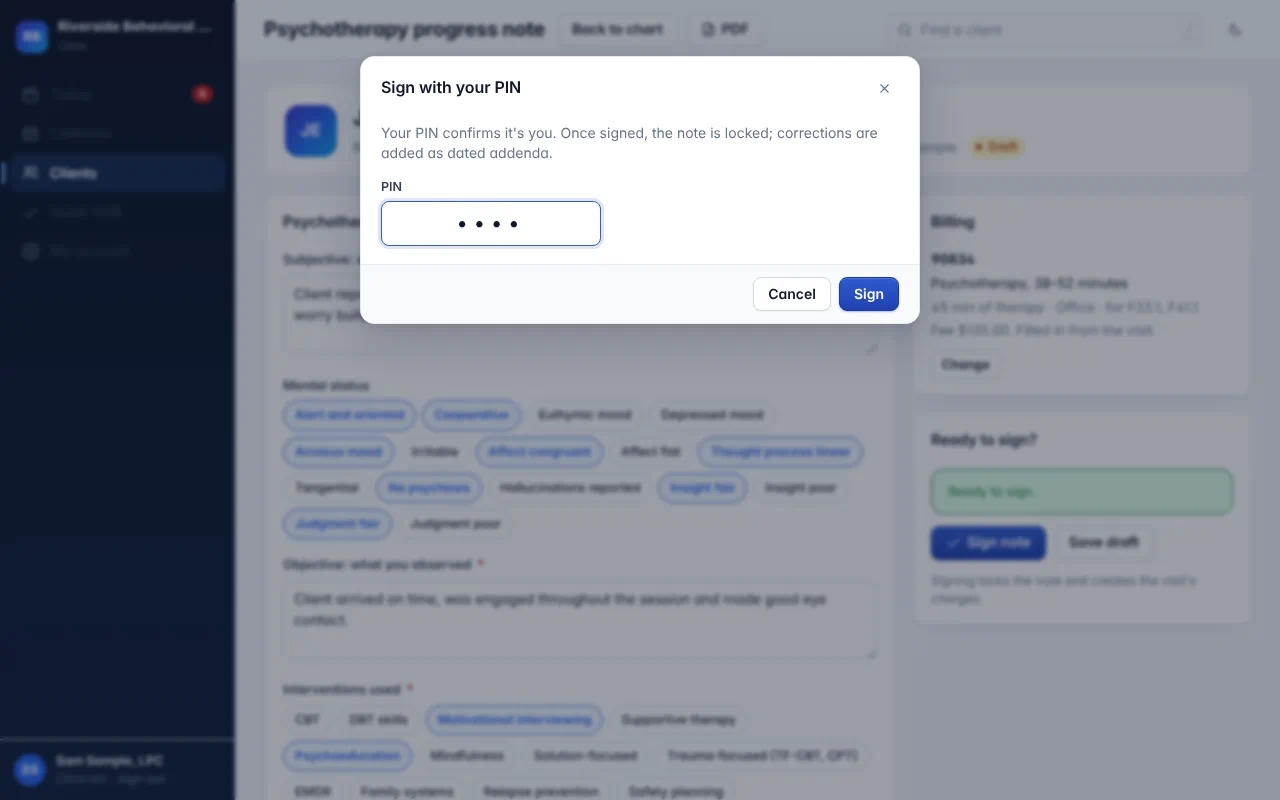
Sign with your PIN
Your PIN confirms it's you. Signed means locked; any correction is a dated addendum.
Open the full-size screen -
Step 7 of 11
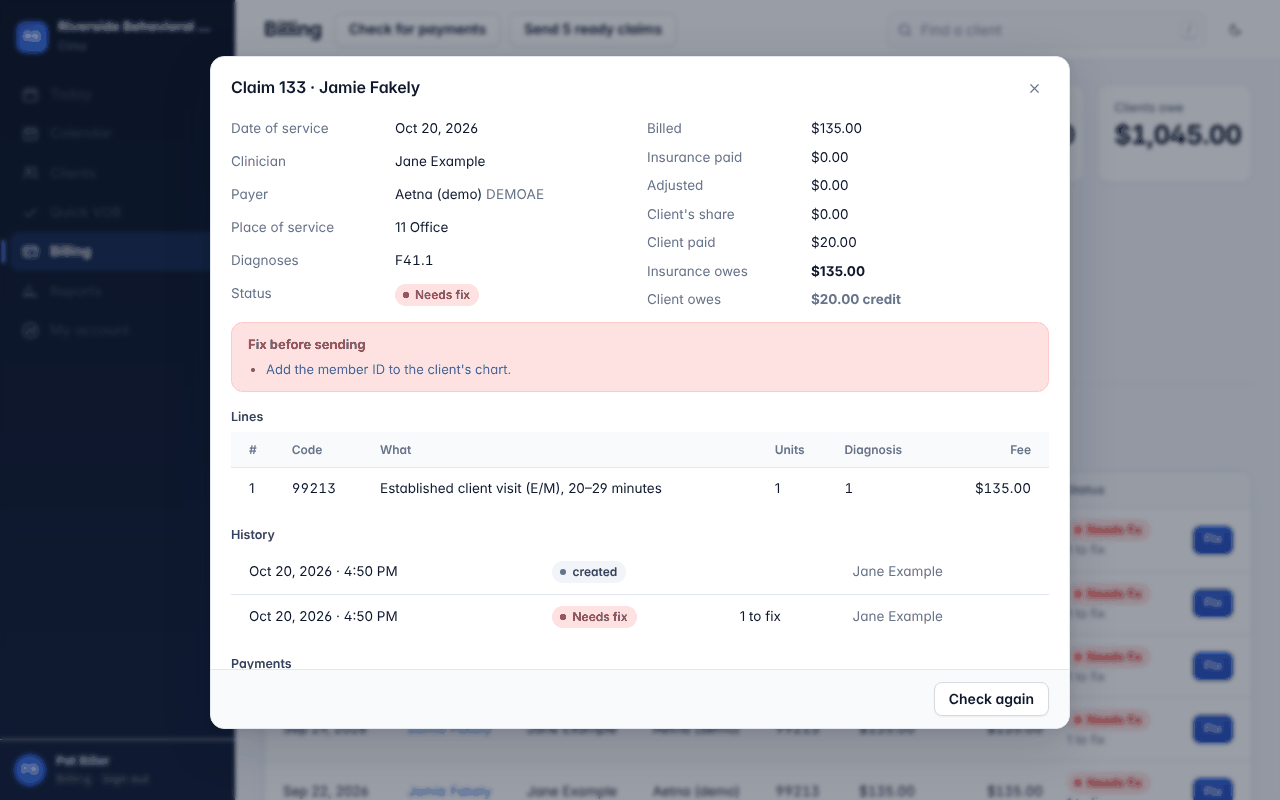
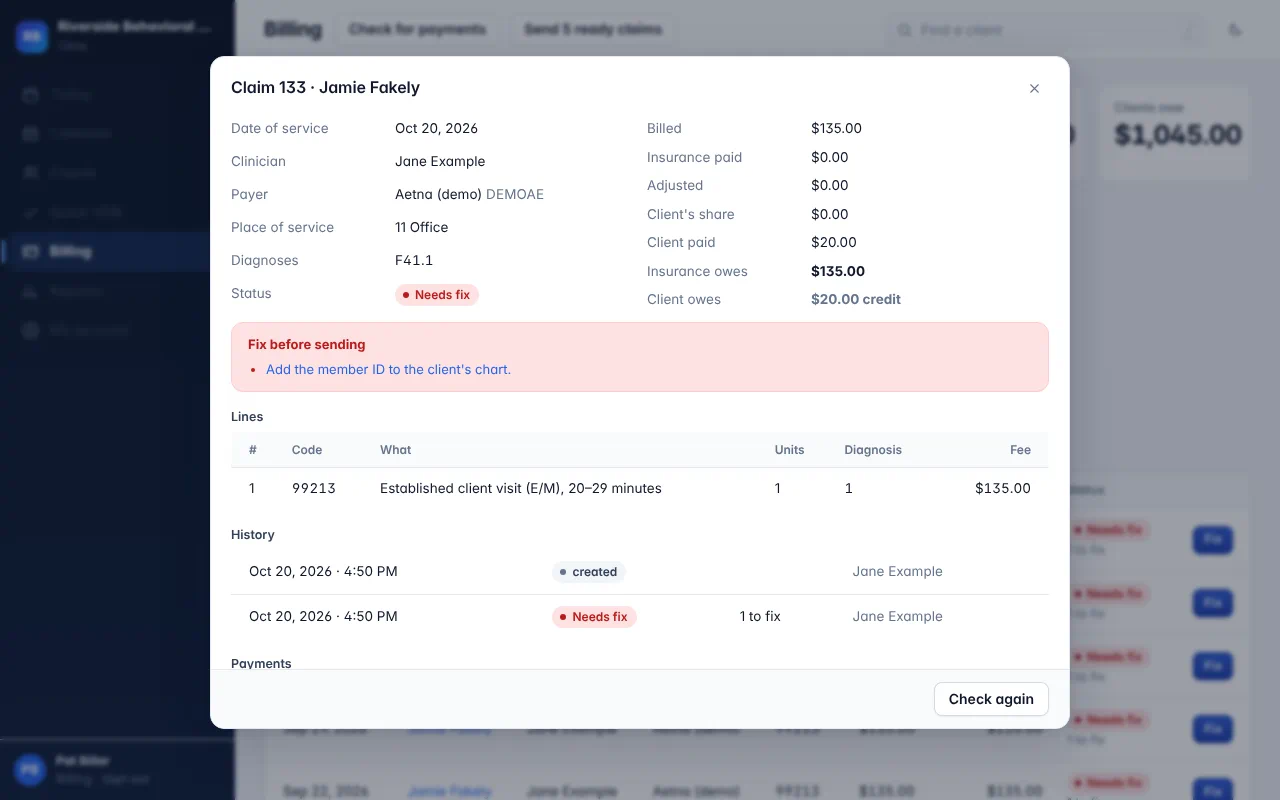
Claims, checked before they go
Signing the note created the claim. Each one is checked first; a claim that needs a fix says what's missing, in plain words.
Open the full-size screen -
Step 8 of 11
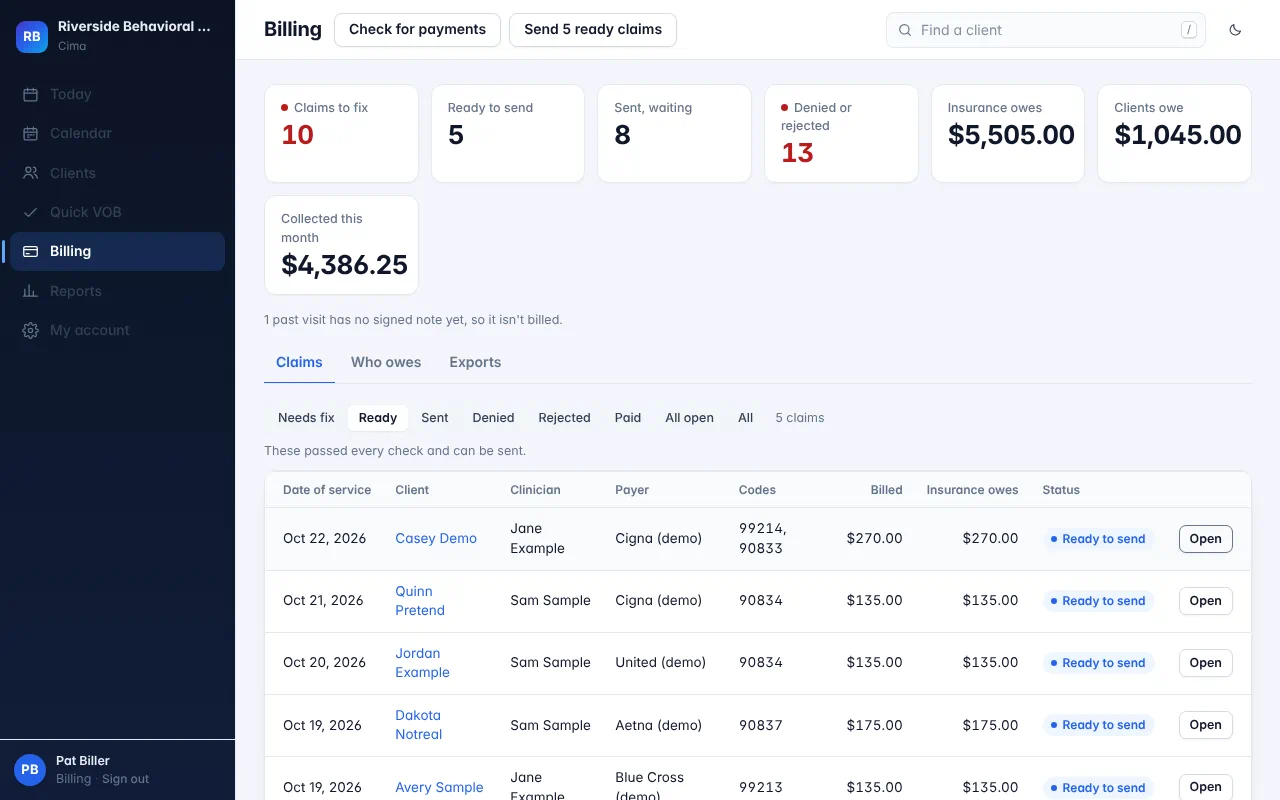
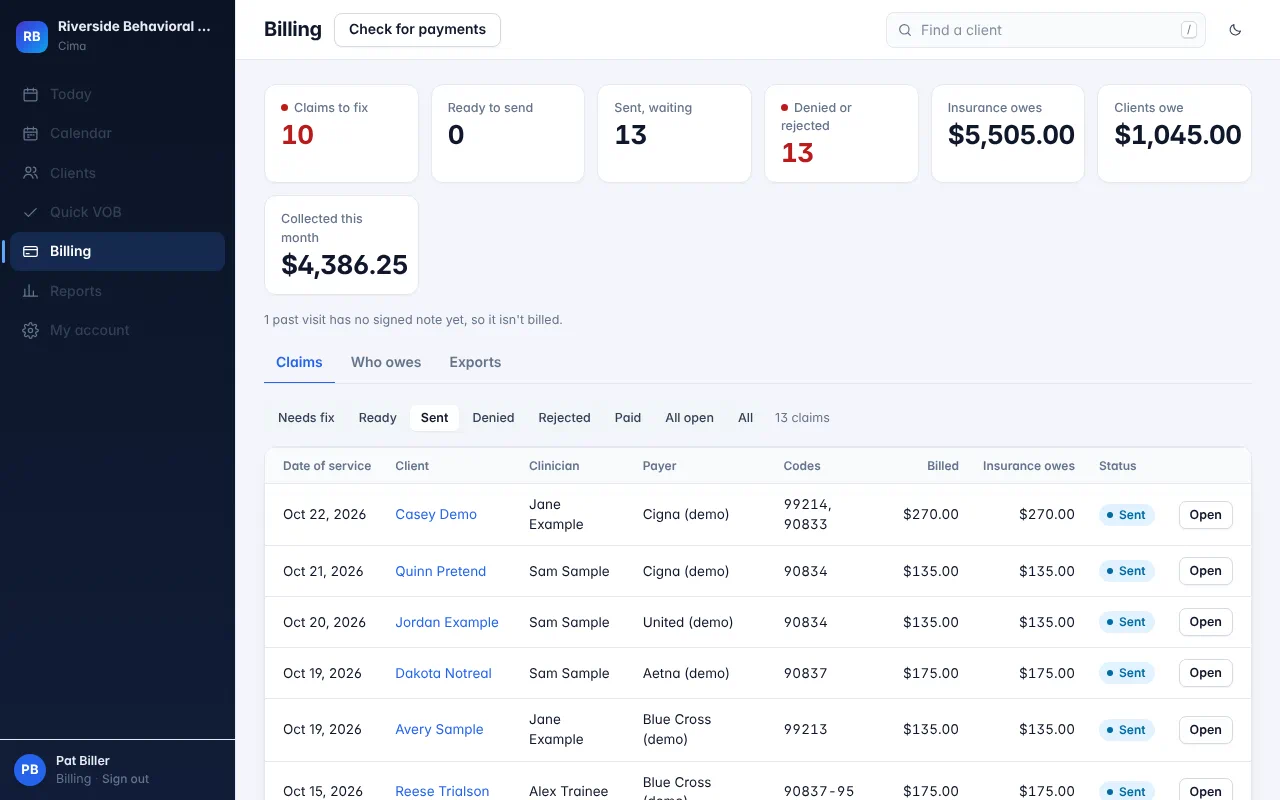
Send them all at once
Ready claims go to the clearinghouse in one click. You see when the payer accepts them.
Open the full-size screen -
Step 9 of 11
Payments post themselves
When the payer pays, Check for payments reads the remittance and posts each payment, adjustment and copay to the right claim.
Open the full-size screen -
Step 10 of 11
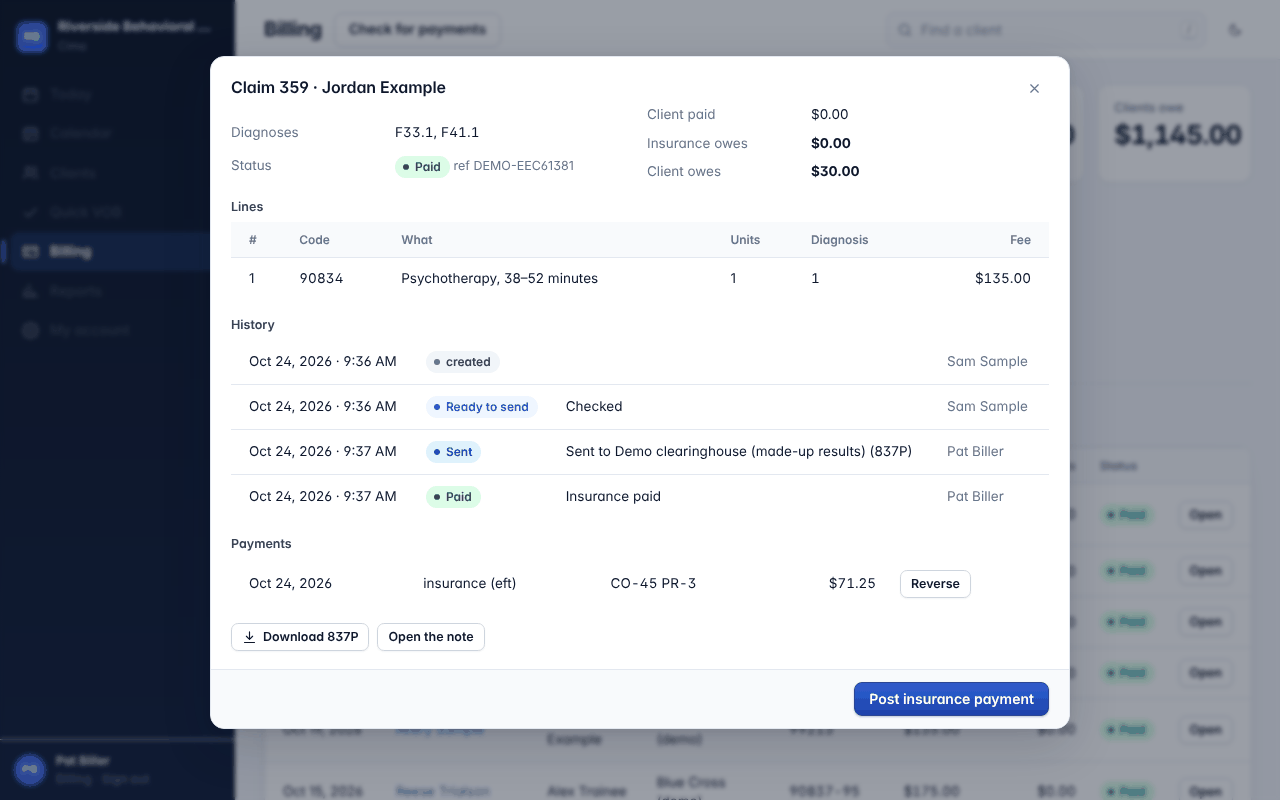
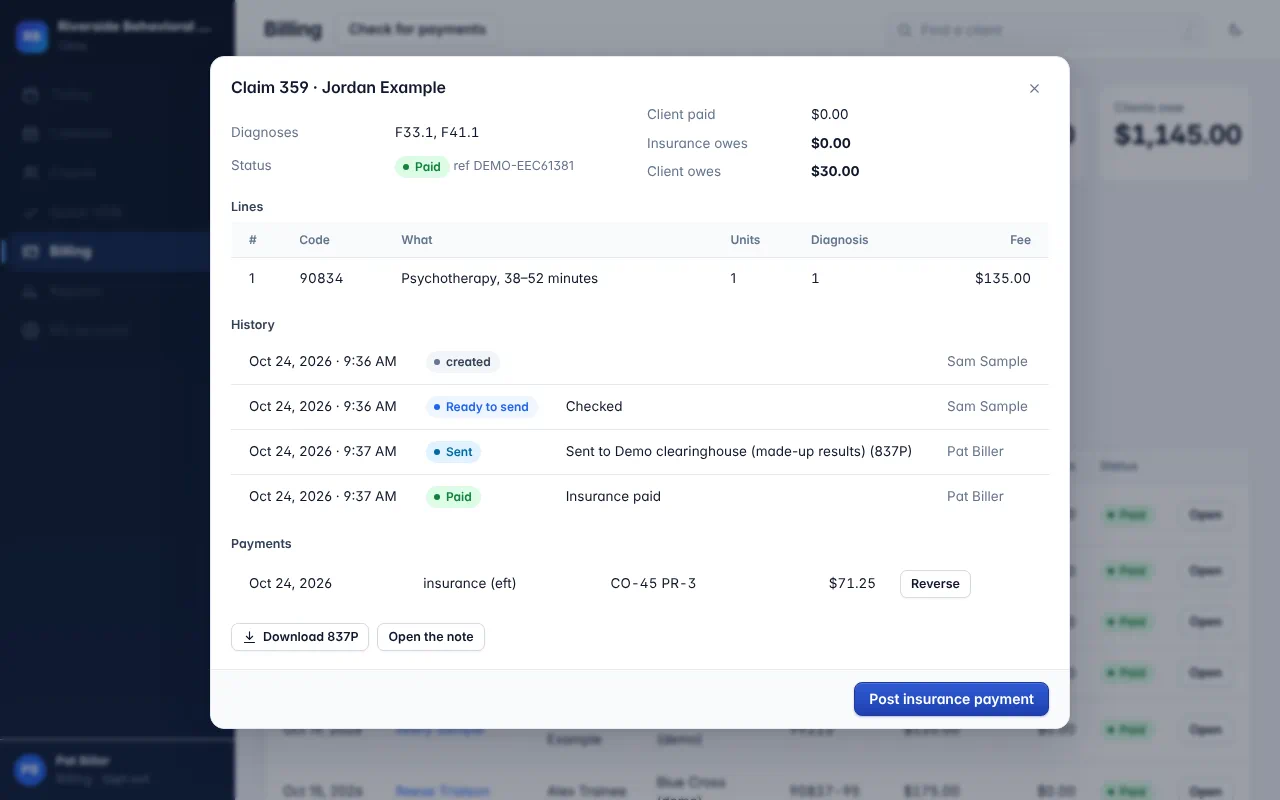
Paid, to the cent
Each claim shows what insurance paid, the adjustment and the client's share, straight from the payer's remittance.
Open the full-size screen -
Step 11 of 11
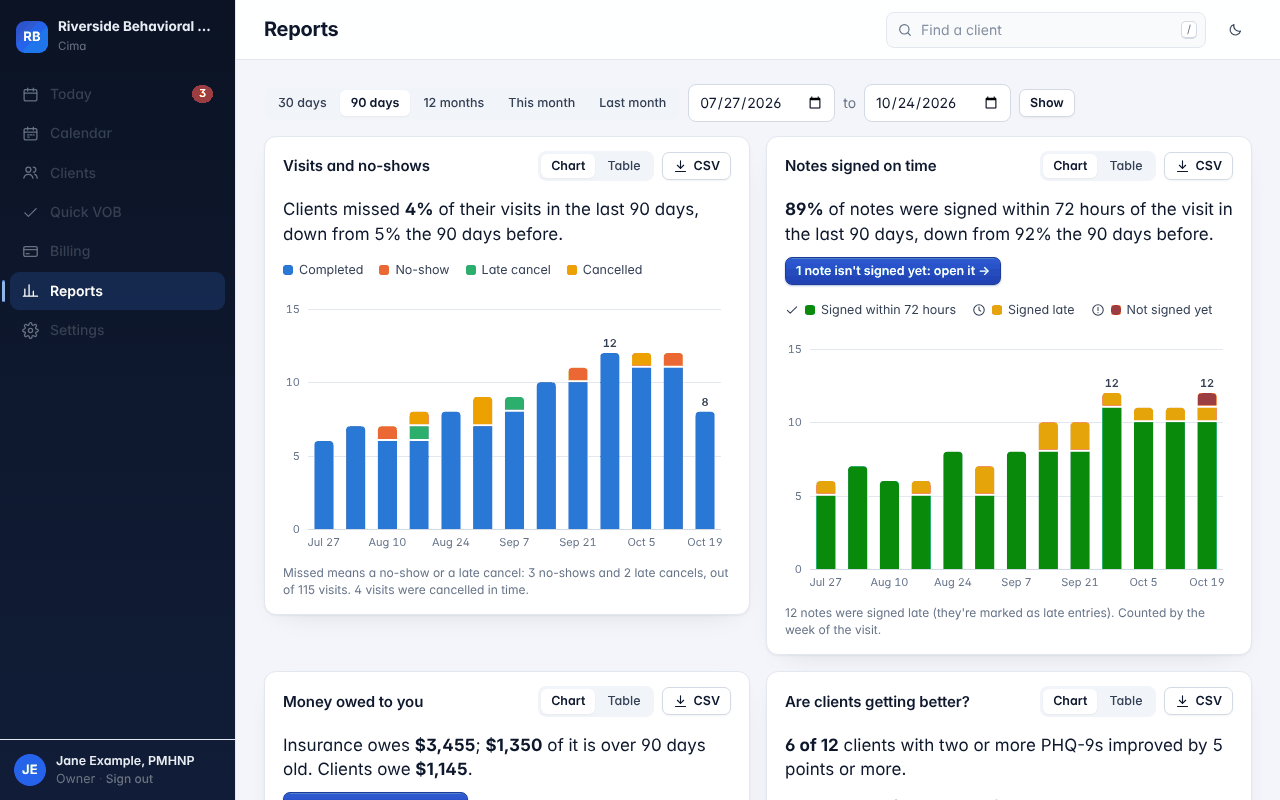
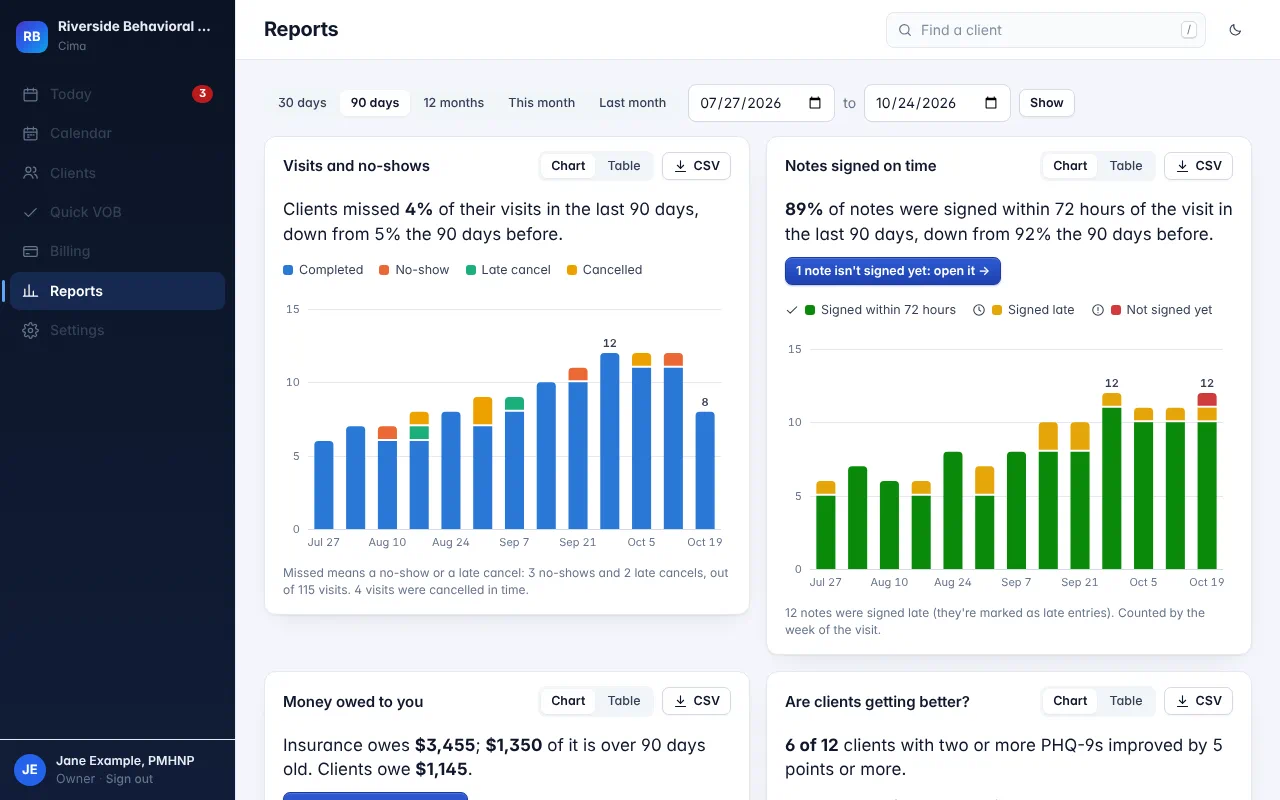
Your practice at a glance
No-shows, notes signed on time, money owed and whether clients are getting better, each in one sentence with a chart.
Open the full-size screen That's a practice day in Cima.
Booked online, paperwork done before the visit, the note signed, the claim sent and paid. All in one place, from $59 a month.


An IOP or PHP program in Cima
A made-up program's week: group notes, hours against each level of care, authorizations and per diem billing. 8 steps.
-
Step 1 of 8
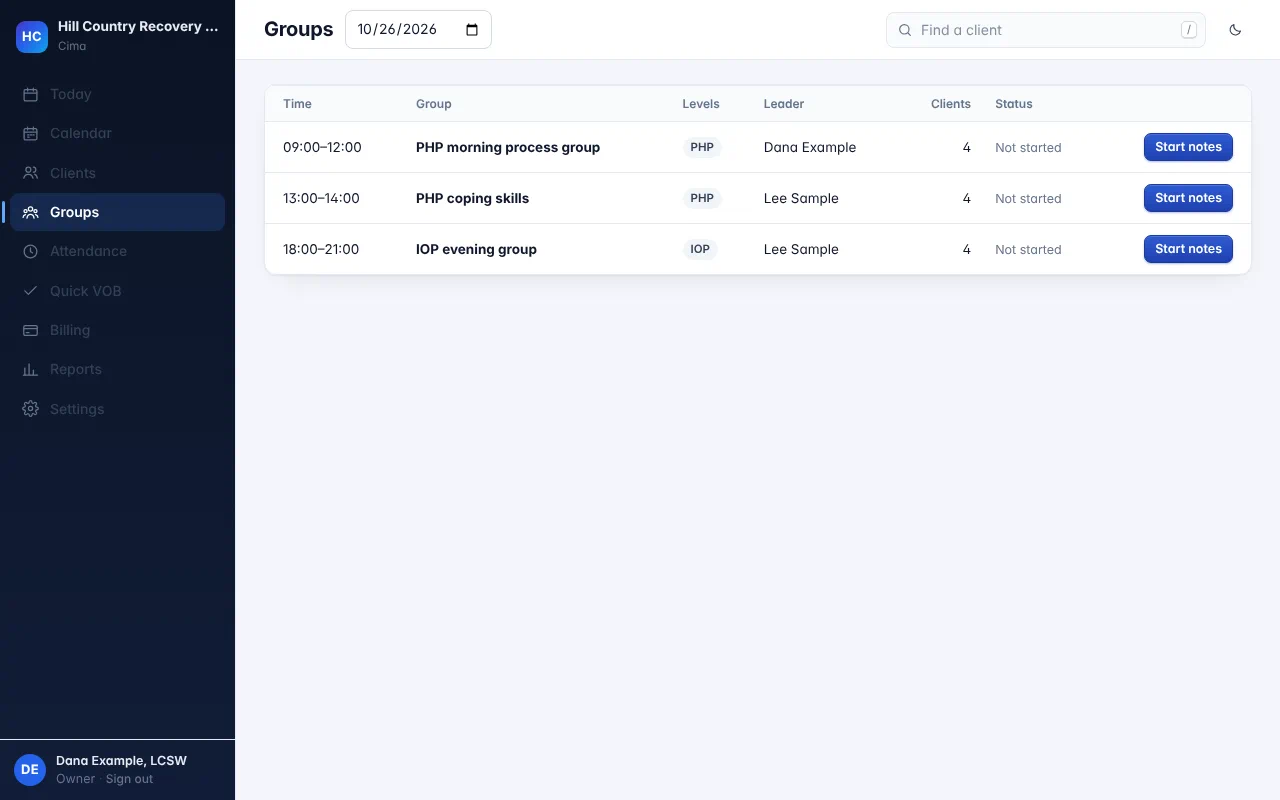
The day's groups
Each group on the schedule, with its levels of care, leader and clients. Start the notes for one.
Open the full-size screen -
Step 2 of 8
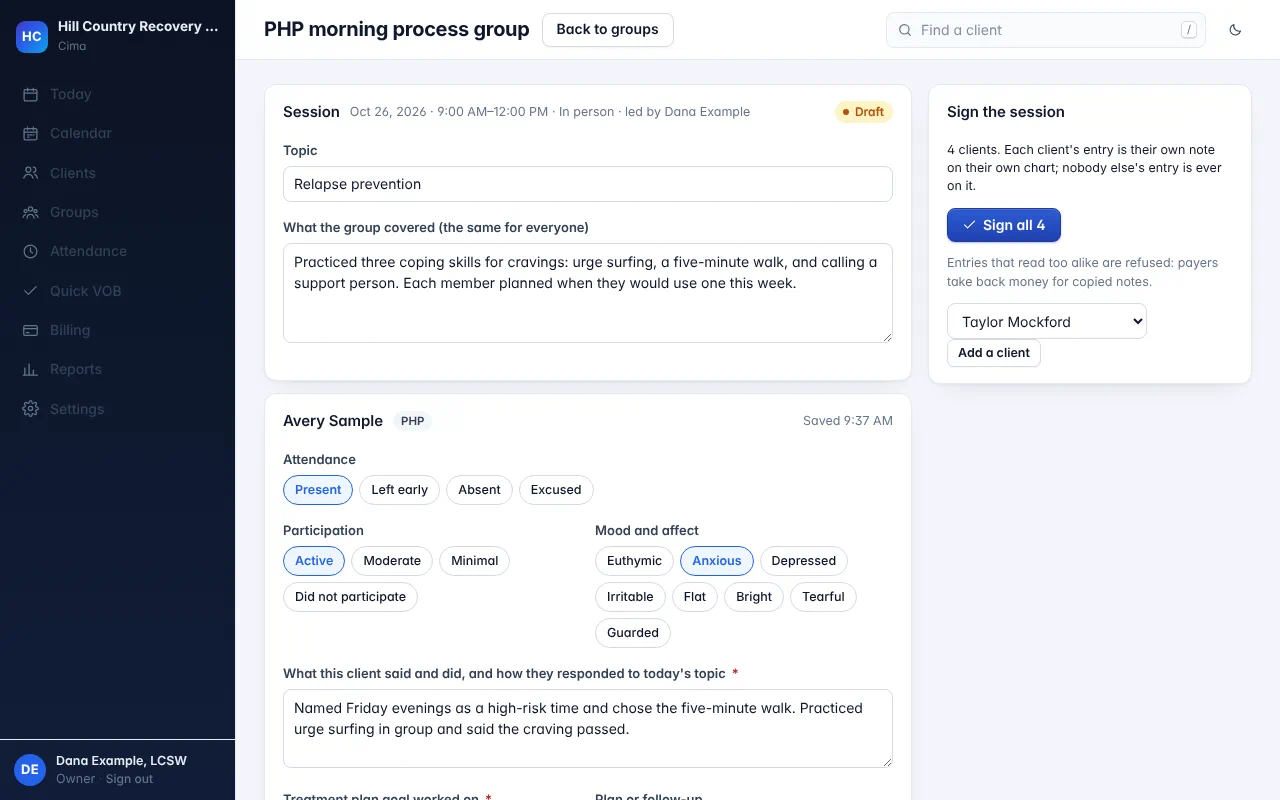
One summary, each client's own entry
Write what the group covered once. Each client gets their own attendance, participation and response, tied to a treatment plan goal.
Open the full-size screen -
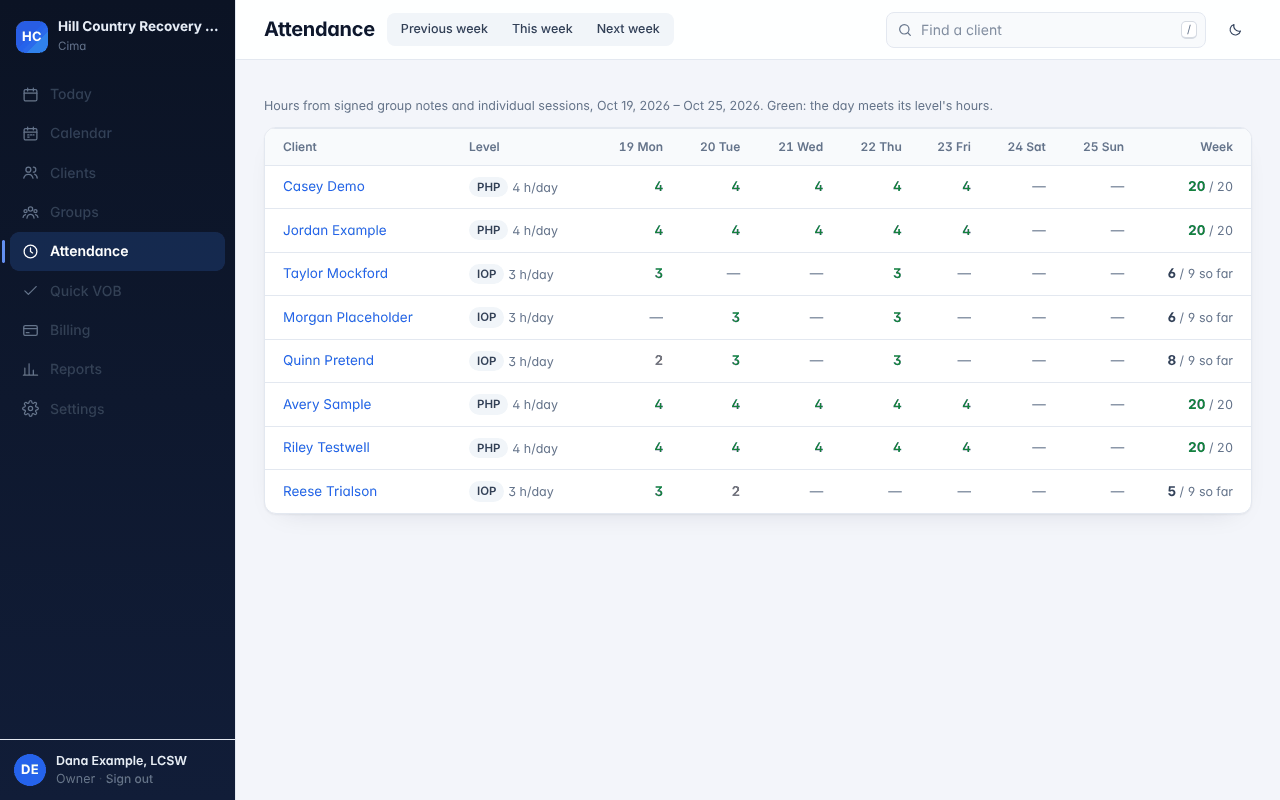
Step 3 of 8
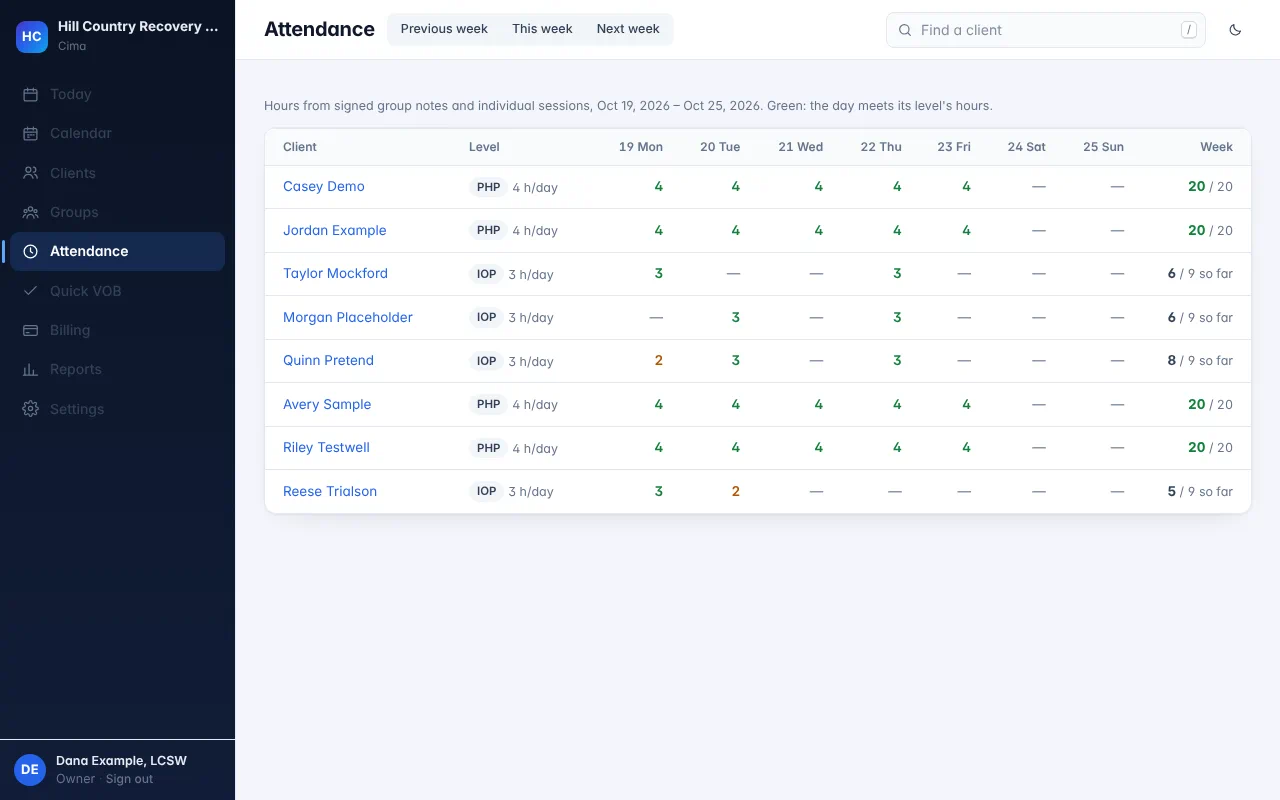
Hours against each level of care
Hours come from signed group notes and individual sessions. Green means the day meets its level's hours; you see who's short before the week ends.
Open the full-size screen -
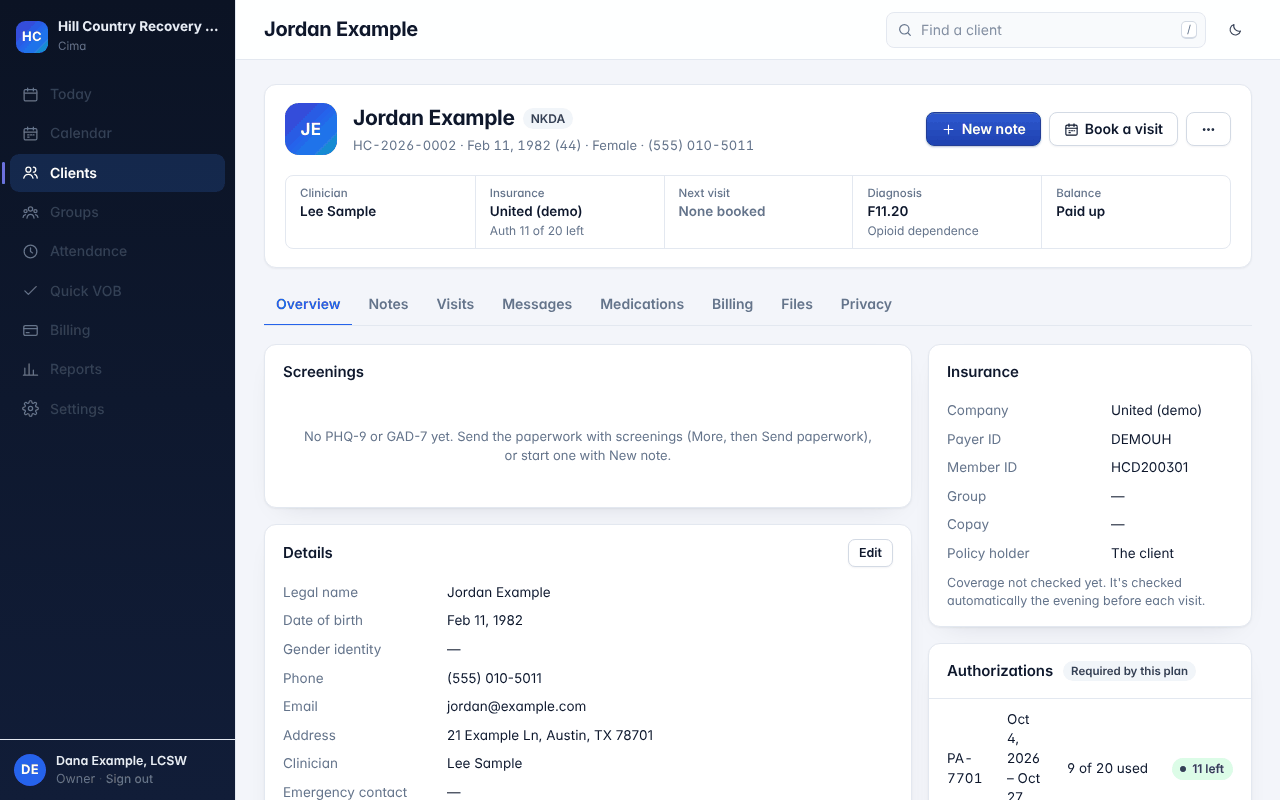
Step 4 of 8
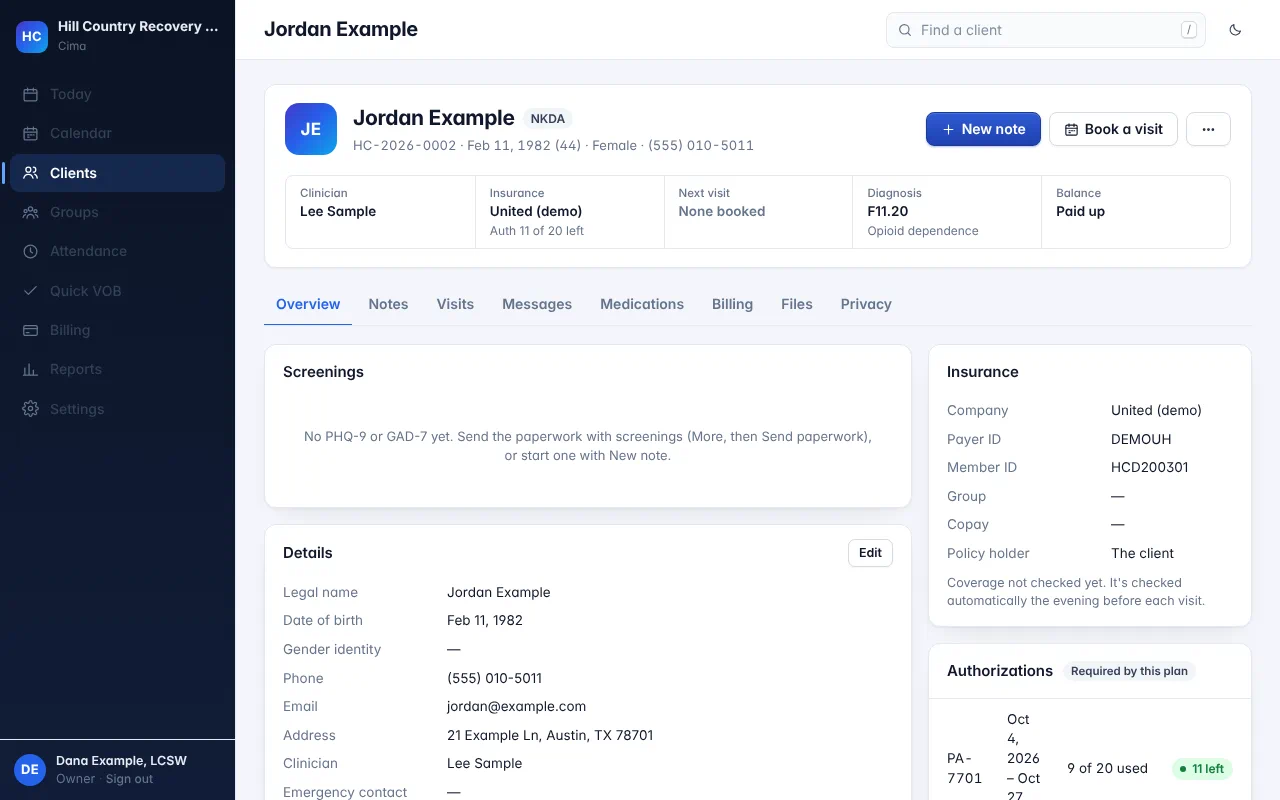
The authorization, on the chart
Each client's chart shows their level of care, diagnosis and how many authorized days are left.
Open the full-size screen -
Step 5 of 8
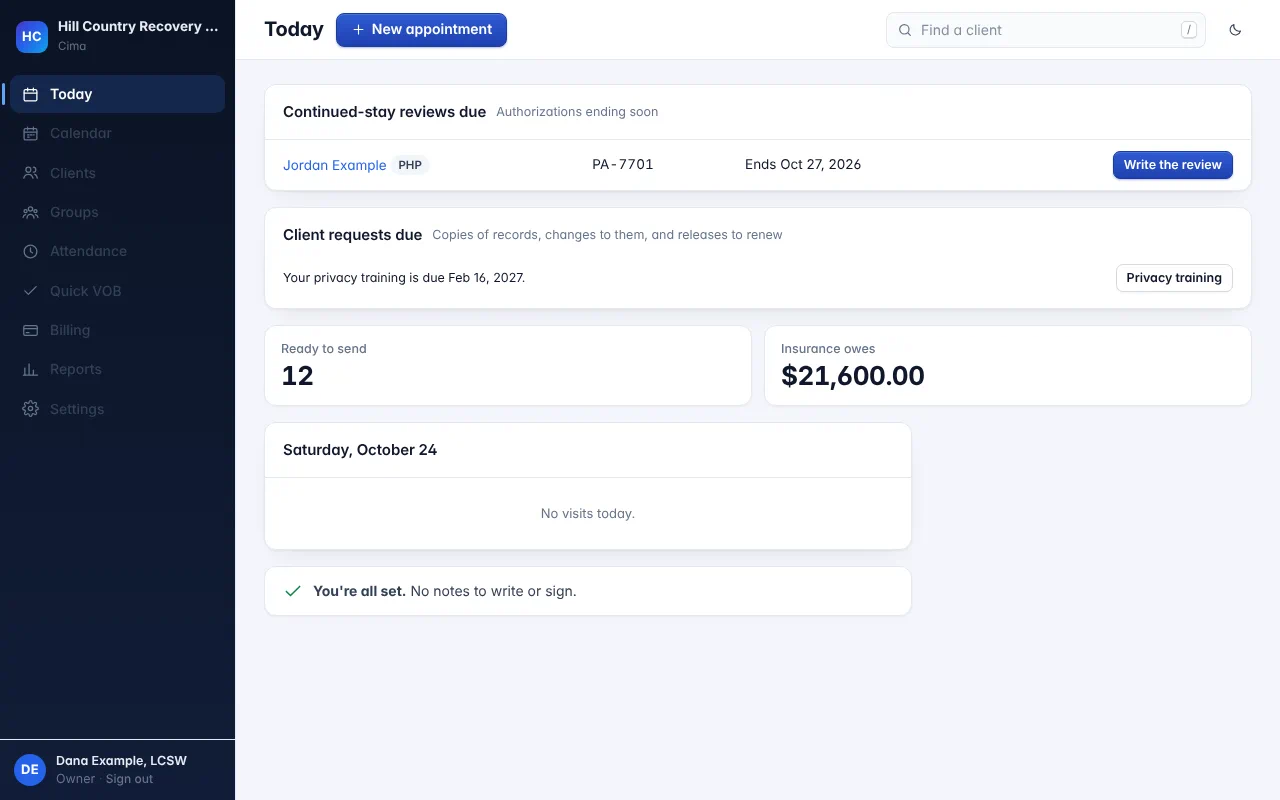
Continued-stay reviews, before the auth ends
Today lists every authorization ending soon, so the review is written in time to ask for more days.
Open the full-size screen -
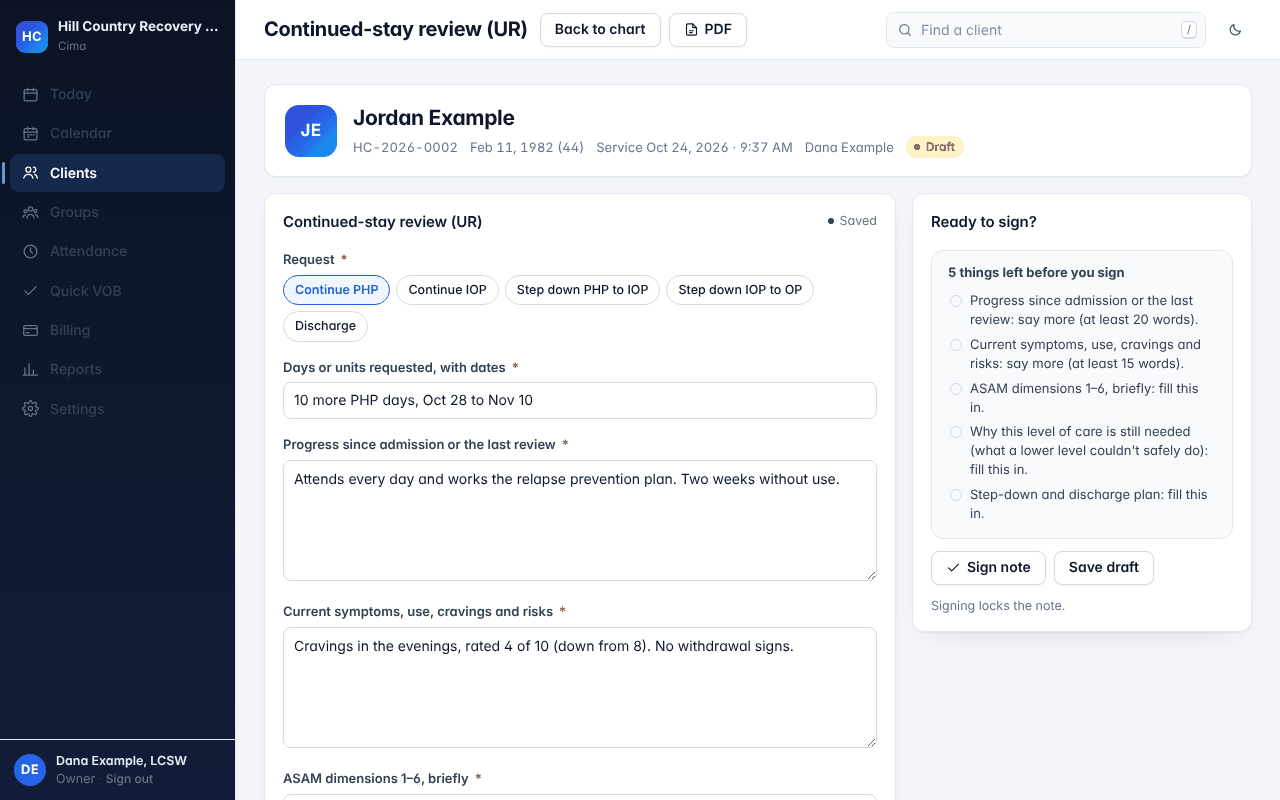
Step 6 of 8
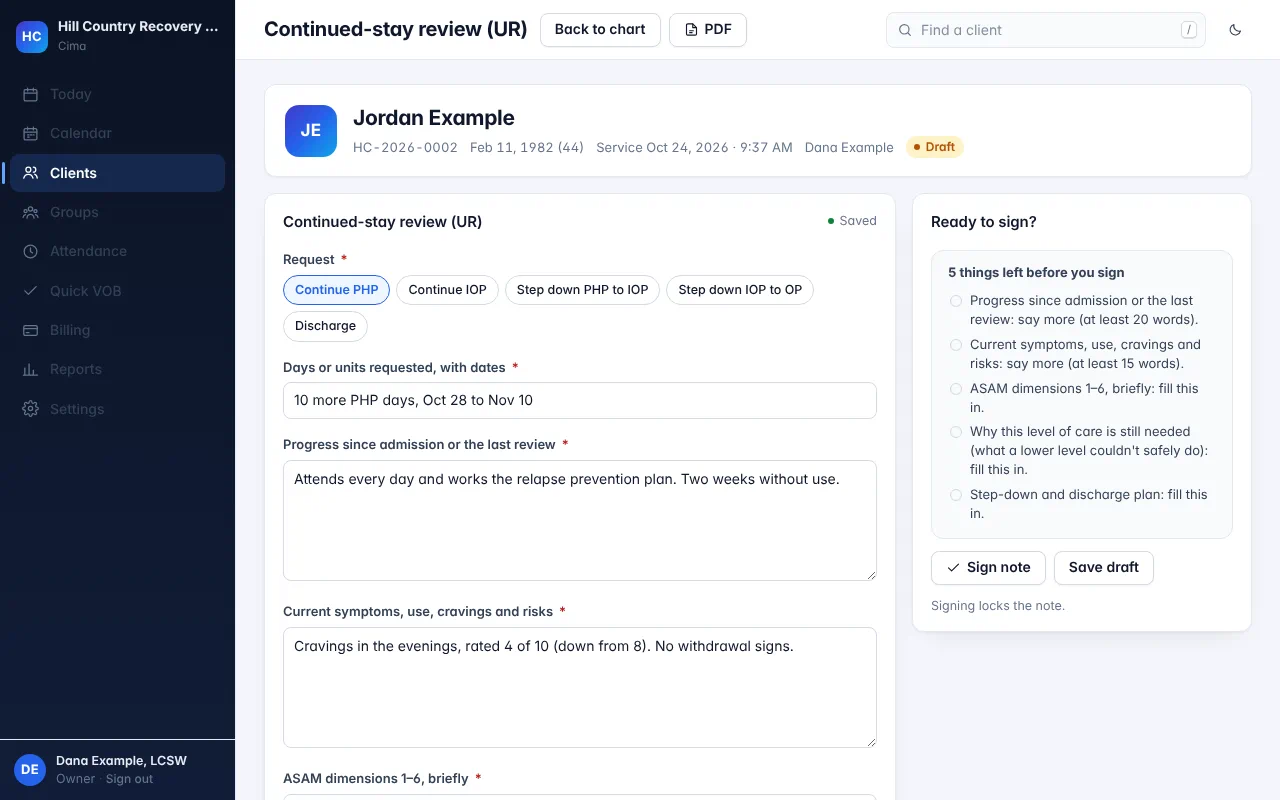
The review, started for you
It asks what payers ask: the request, the days, progress, symptoms, the six ASAM dimensions and the step-down plan. It lists what's left before you sign.
Open the full-size screen -
Step 7 of 8
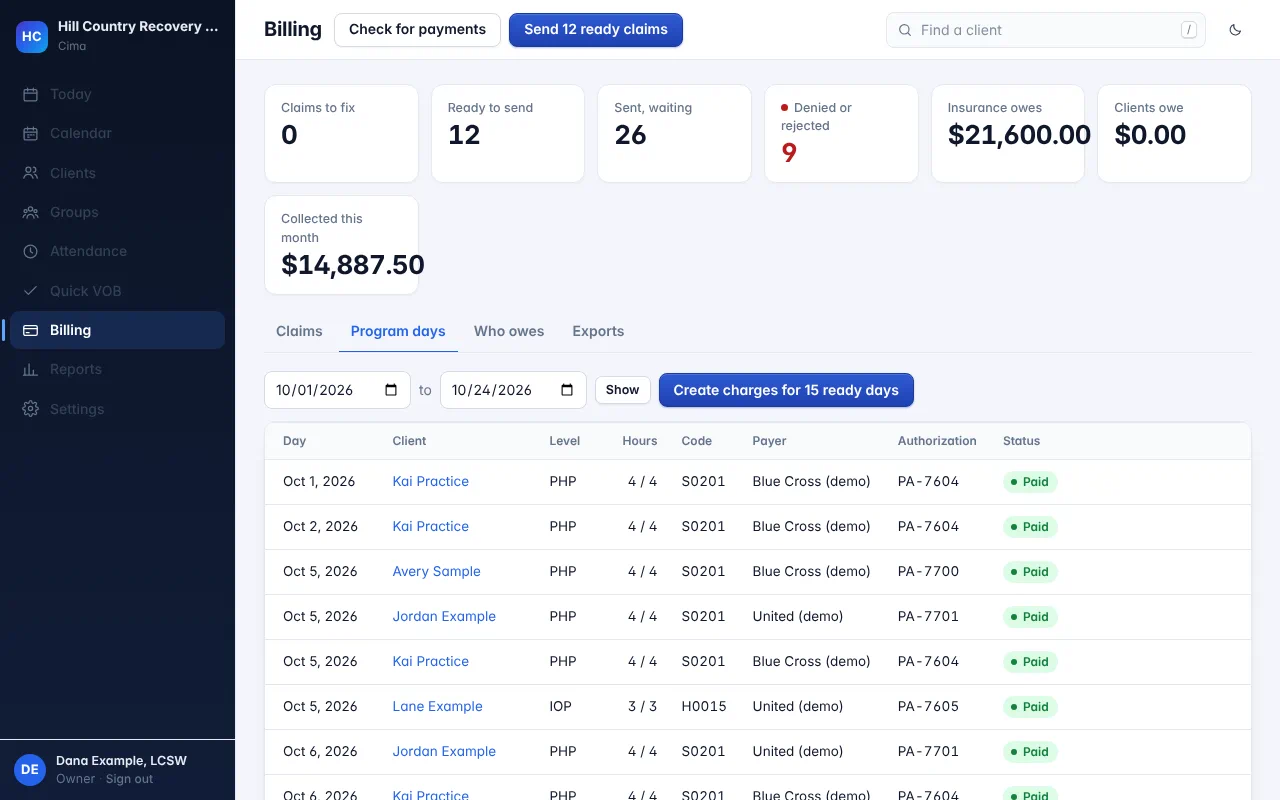
Per diem billing from attendance
Each program day becomes a charge with the right code for its level, checked against the hours and the authorization.
Open the full-size screen -
Step 8 of 8
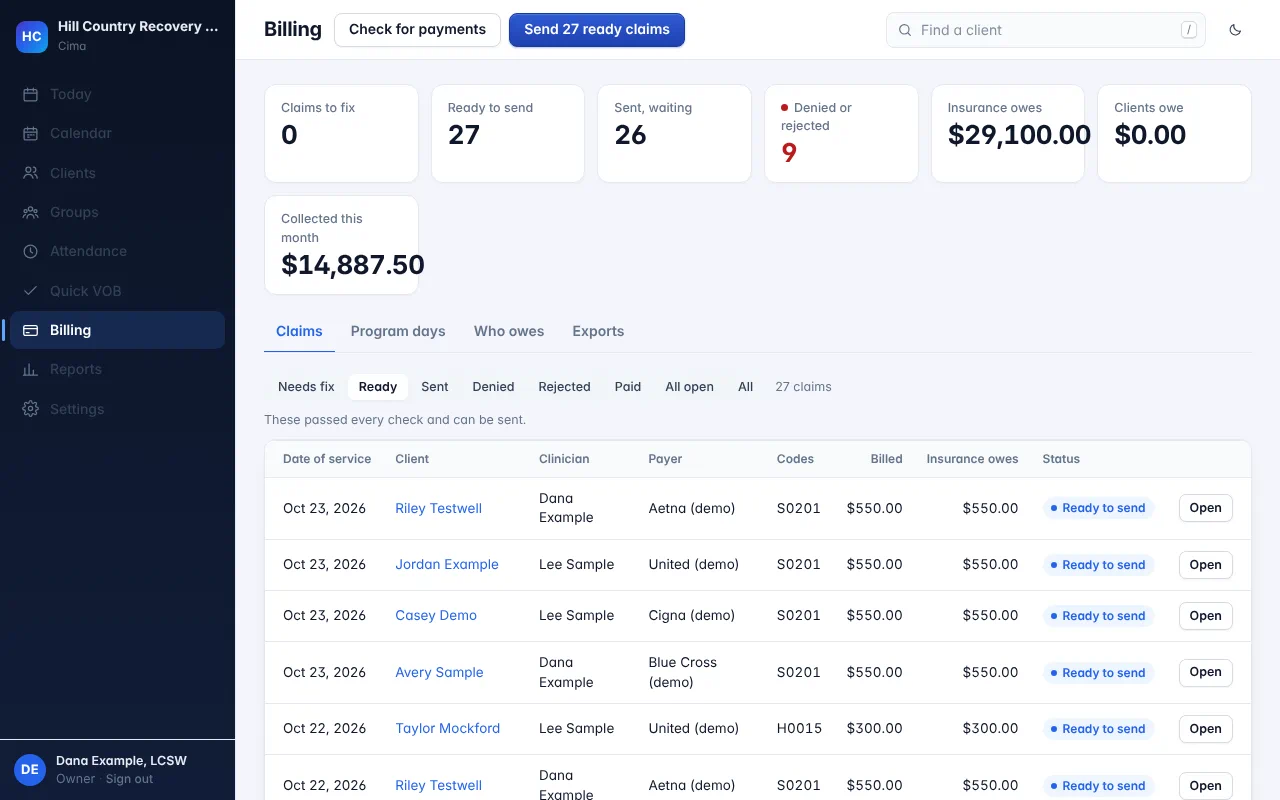
Then send them
The day charges join the ready claims. Send them all to the clearinghouse in one click, and post payments when they come back.
Open the full-size screen That's a program week in Cima.
Group notes, hours against each level of care, continued-stay reviews and per diem claims, on the Program plan.
Rather see it with your own clients?
We'll set you up, usually within one business day.
Get early access